Your whole stream screen, in one frame.
Paste videos from five platforms, drag them where you want and send the result to OBS with one link.
Everything on one screen
Studio Frame builds the picture you show on your stream. You edit it in your browser. OBS shows it live.
Videos and layout
Paste links, drag the boxes where you want them and keep the layouts you like.
Videos from five platforms
Paste a Facebook, YouTube, X, Instagram or TikTok link into a box and it plays.
Layout presets
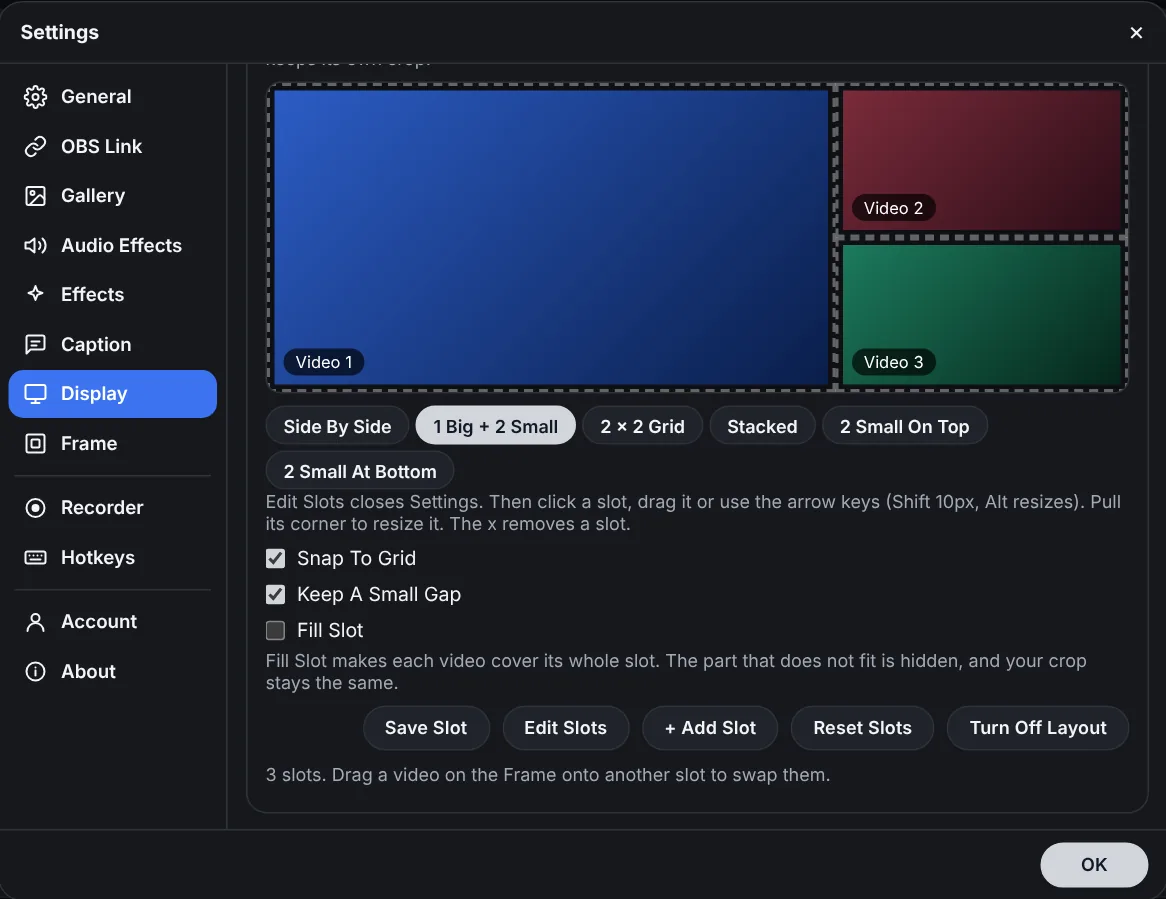
Side By Side, 1 Big + 2 Small, 2 x 2 Grid, Stacked and more. Start from one, then change it.
Drag to swap
Drag a box onto another to swap them. The video you drag pauses, so nothing jumps.
Edit Slots
Move and resize every slot. Snap to a grid, keep a small gap, add or remove slots, or reset them.
Save Slot and saved layouts
Save a slot or a whole layout and load it again with one click. Rename it any time.
Copy and paste slots
Press Ctrl+C on a slot to copy its size, then Ctrl+V to add another slot of the same size.
Fill or Fit
Fill cuts the edges so there are no bars. Fit shows the whole video with bars.
Zoom, crop and position
Zoom into a video, crop it and place it with position presets.
Borders
Add an inner and an outer border. Choose whether empty slots show their border in the editor, in OBS, or both.
Display color and size
Pick the color behind your videos and a screen size like 1920 x 1080, or press Match OBS.
Remove background
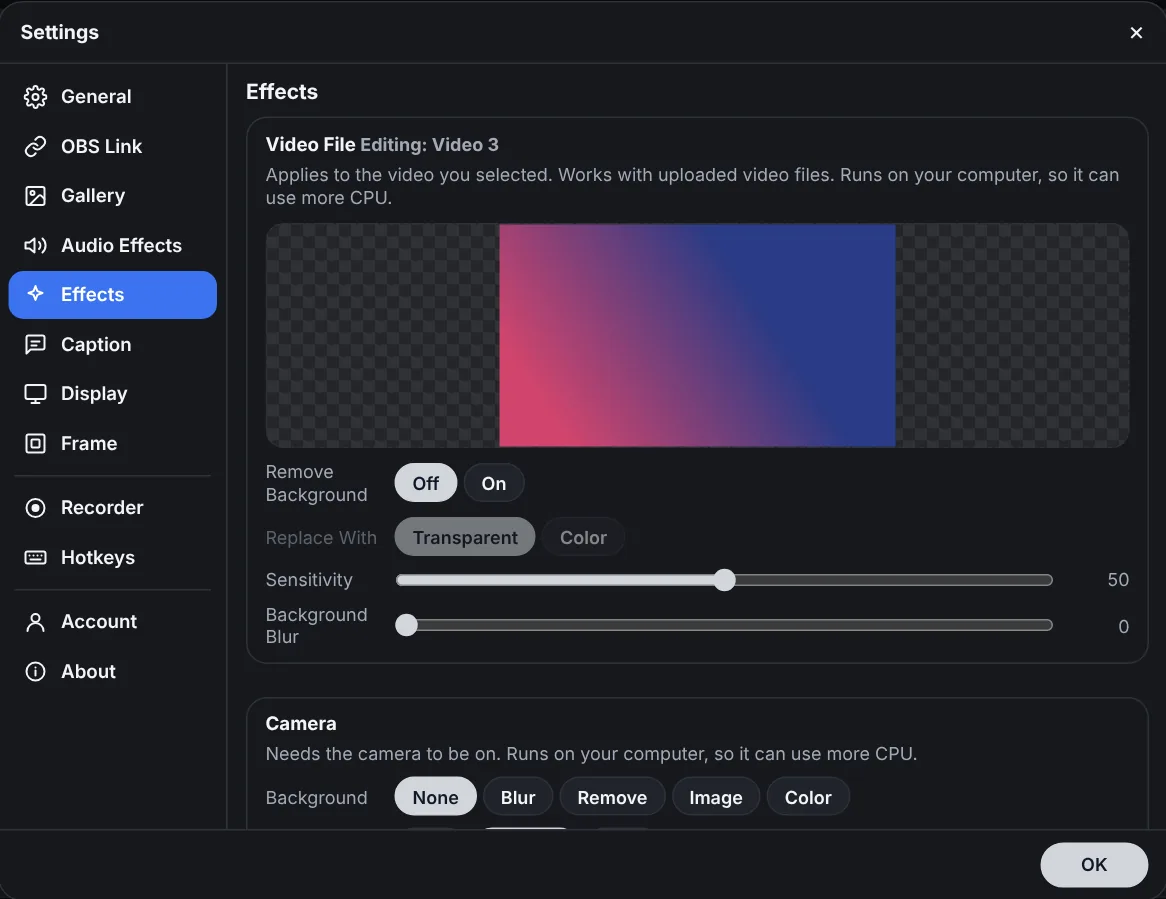
Remove the background of a video file or your camera, with sensitivity and blur controls.
Tabs that name themselves
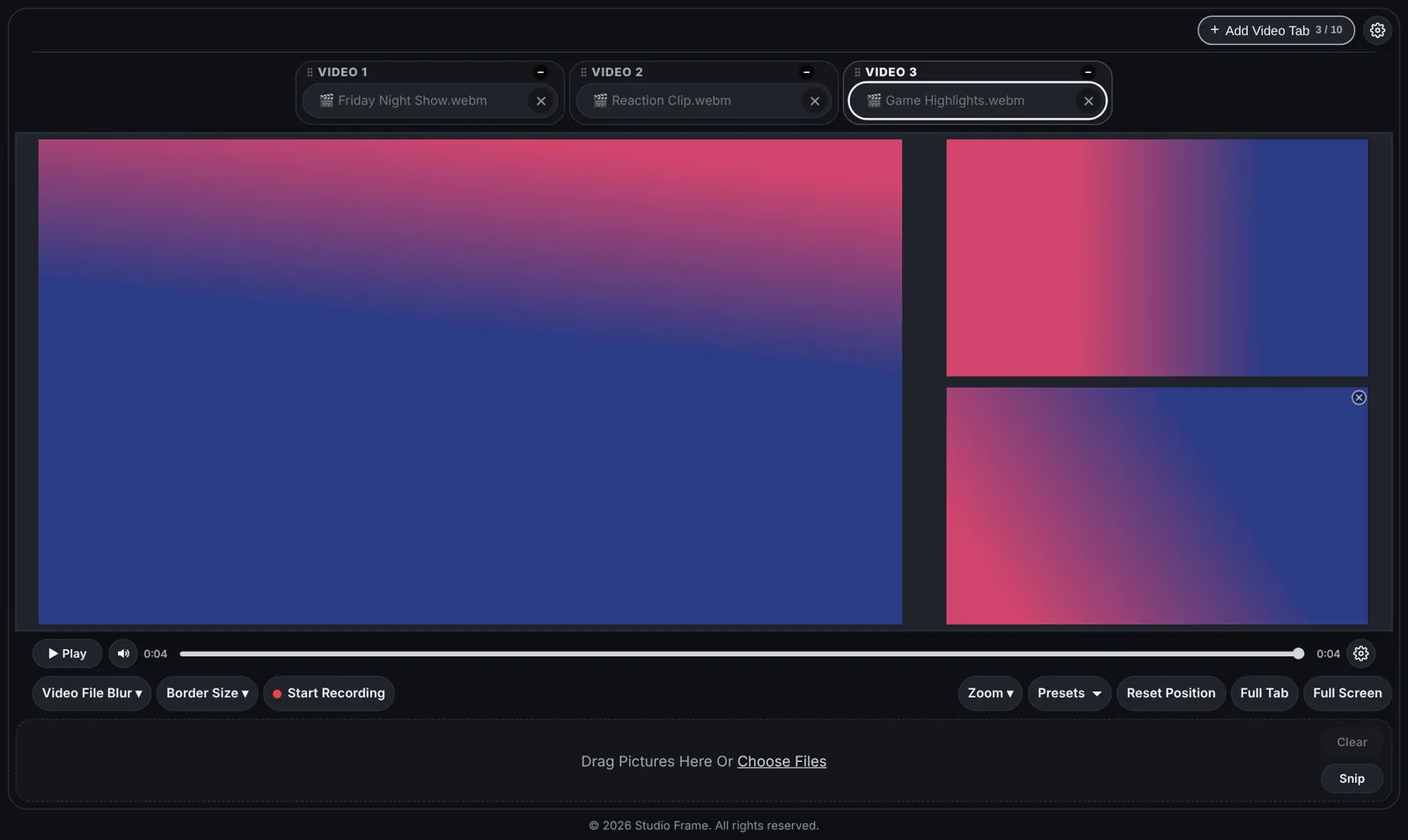
Every box has a tab on top. Paste a video and the tab takes the name of the channel and the title. Long names scroll like a ticker. Rename it any time, and clear the name to go back to the video title.
Sound and control
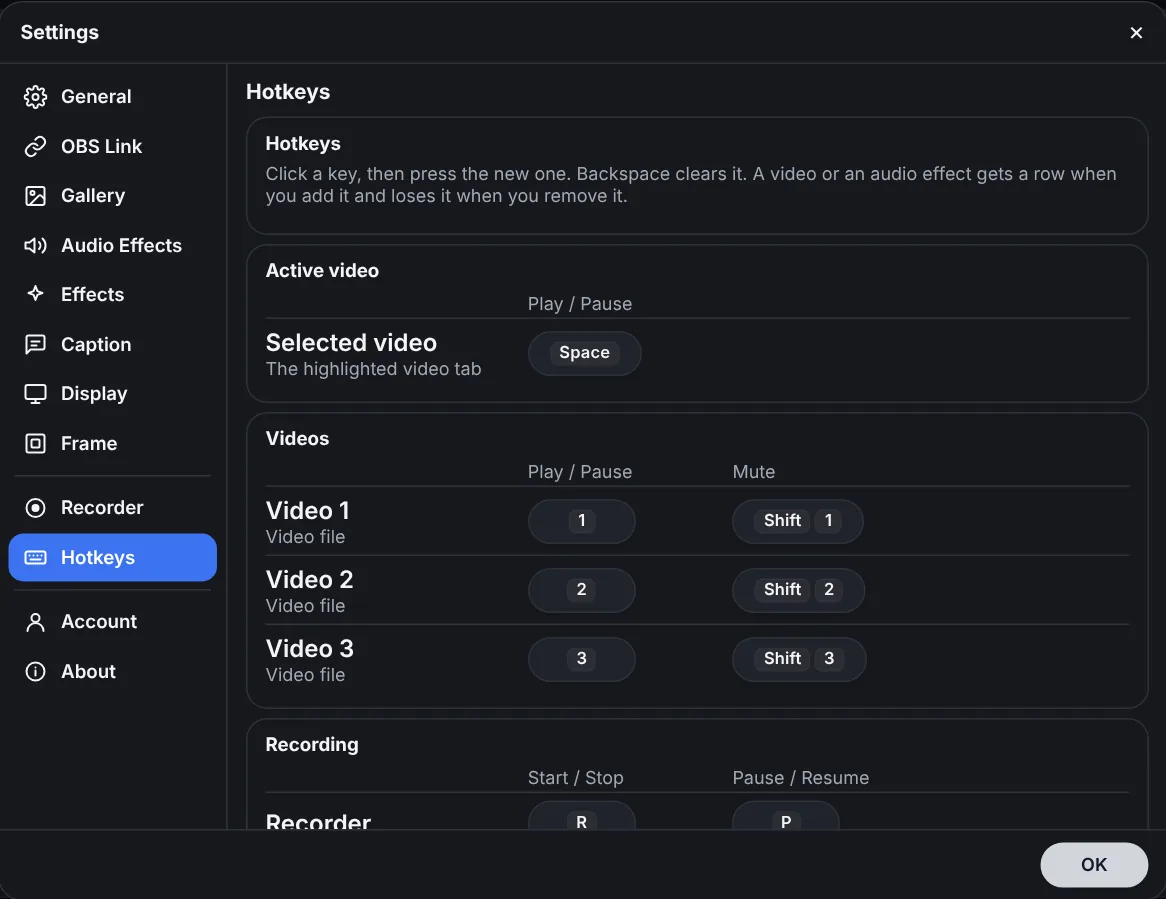
Play, pause and mute without leaving your keyboard. Add sound effects you can fire live.
Audio Effects
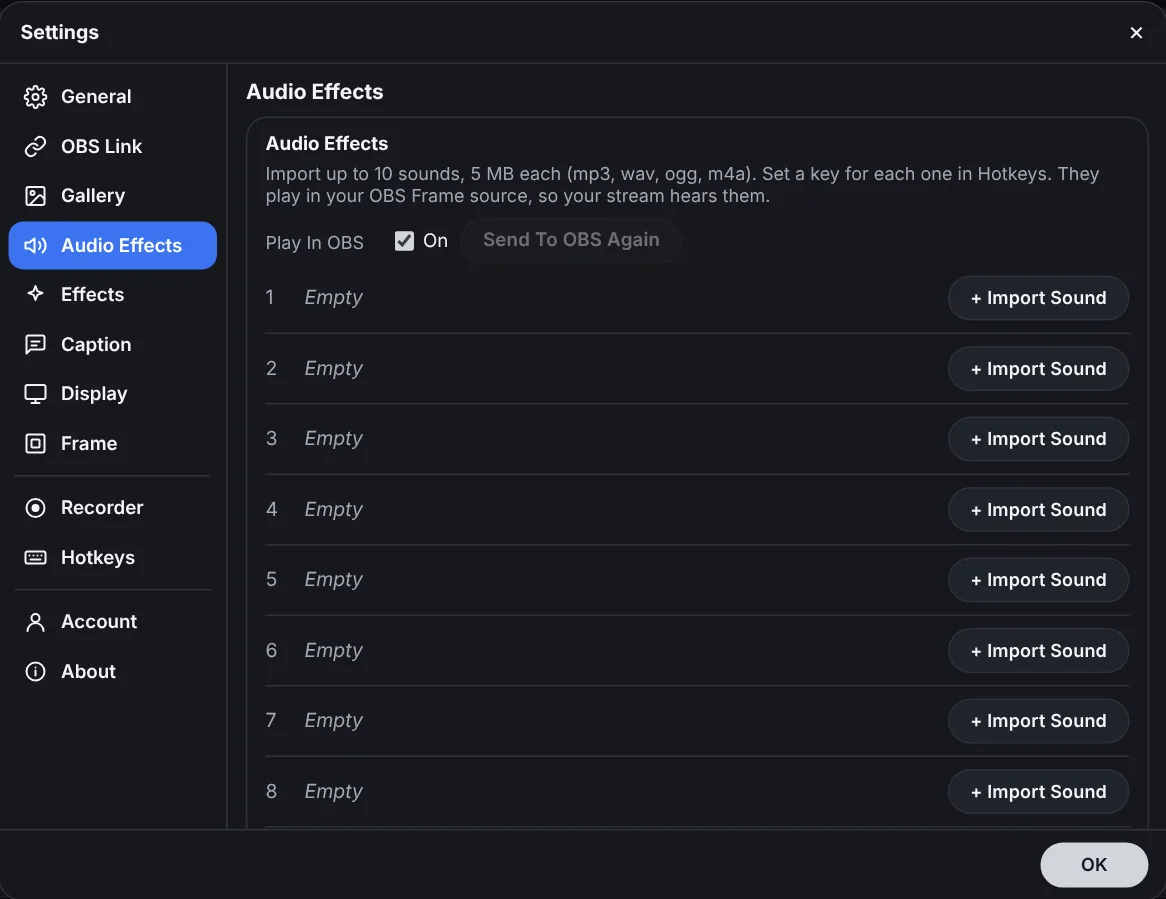
Load your sounds, set the volume of each one and play them with a hotkey. Stop them all at once.
Hotkeys
Play, pause and mute each video, pause the recording and fire effects with the keys you choose.
Camera and mic
Add your camera and your mic to the Frame. Set the camera size and the mic gain, and mirror the camera if you like.
Connect to OBS
One link in a Browser Source. Everything you change shows in OBS right away.
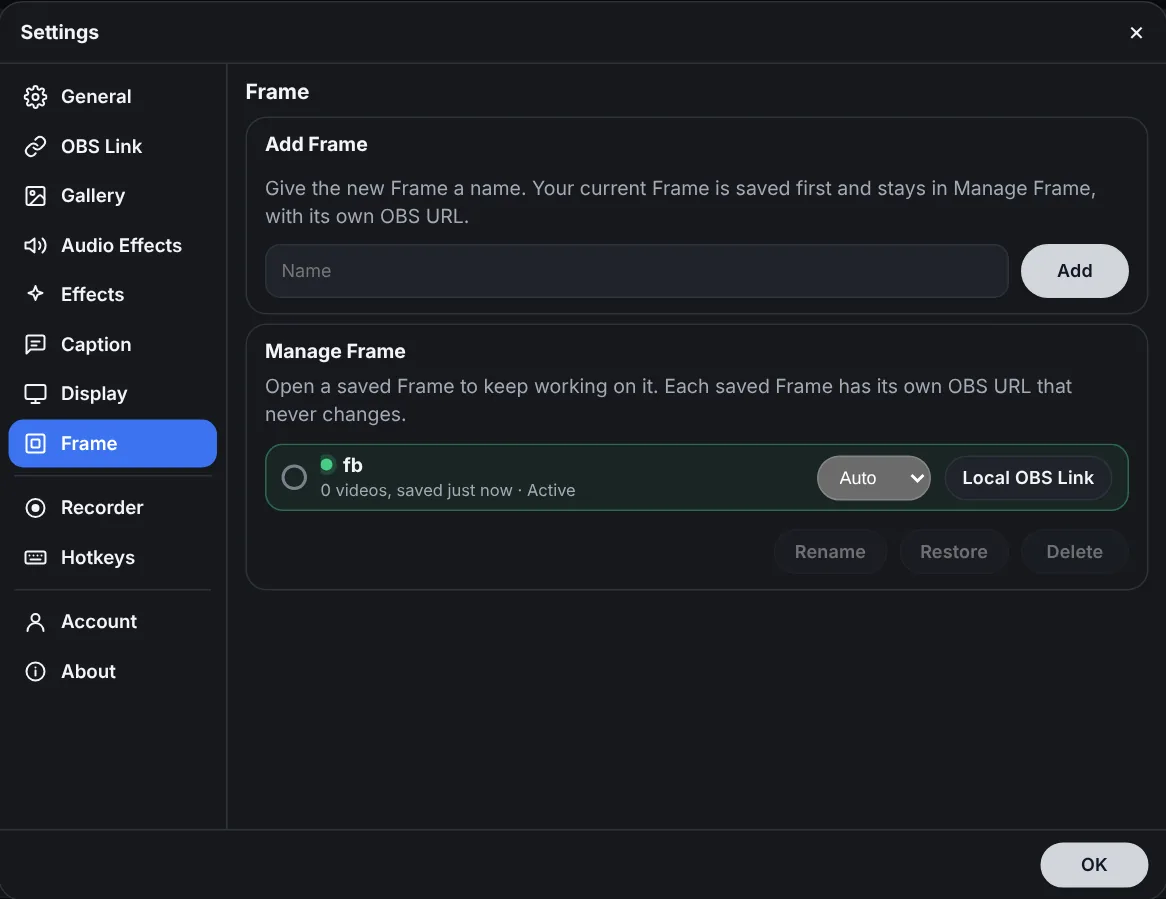
Your own OBS link
Each Frame has its own link. Put it in an OBS Browser Source and you are done.
Live updates
Move a box, change the layout or swap a video. OBS follows as you edit.
Local OBS link
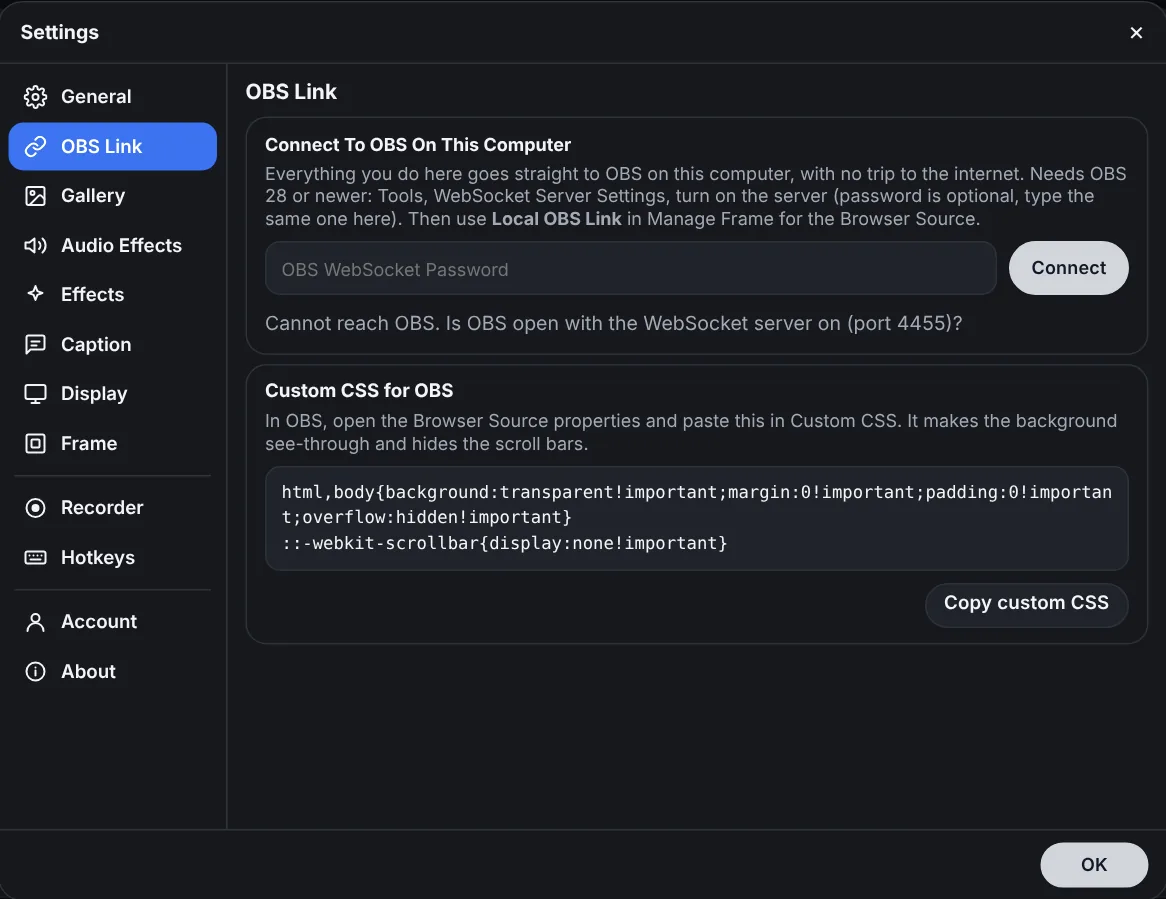
Connect to OBS on your own computer to send your sounds and the video size to OBS directly.
Many Frames
Make a Frame for each show. Each one has its own name and its own link.
Custom CSS
Copy the custom CSS and style the display in OBS the way you want.
Dark and light mode
Edit in the mode that is easy on your eyes.
More tools inside
Small extras that save you a trip to another app.
Captions
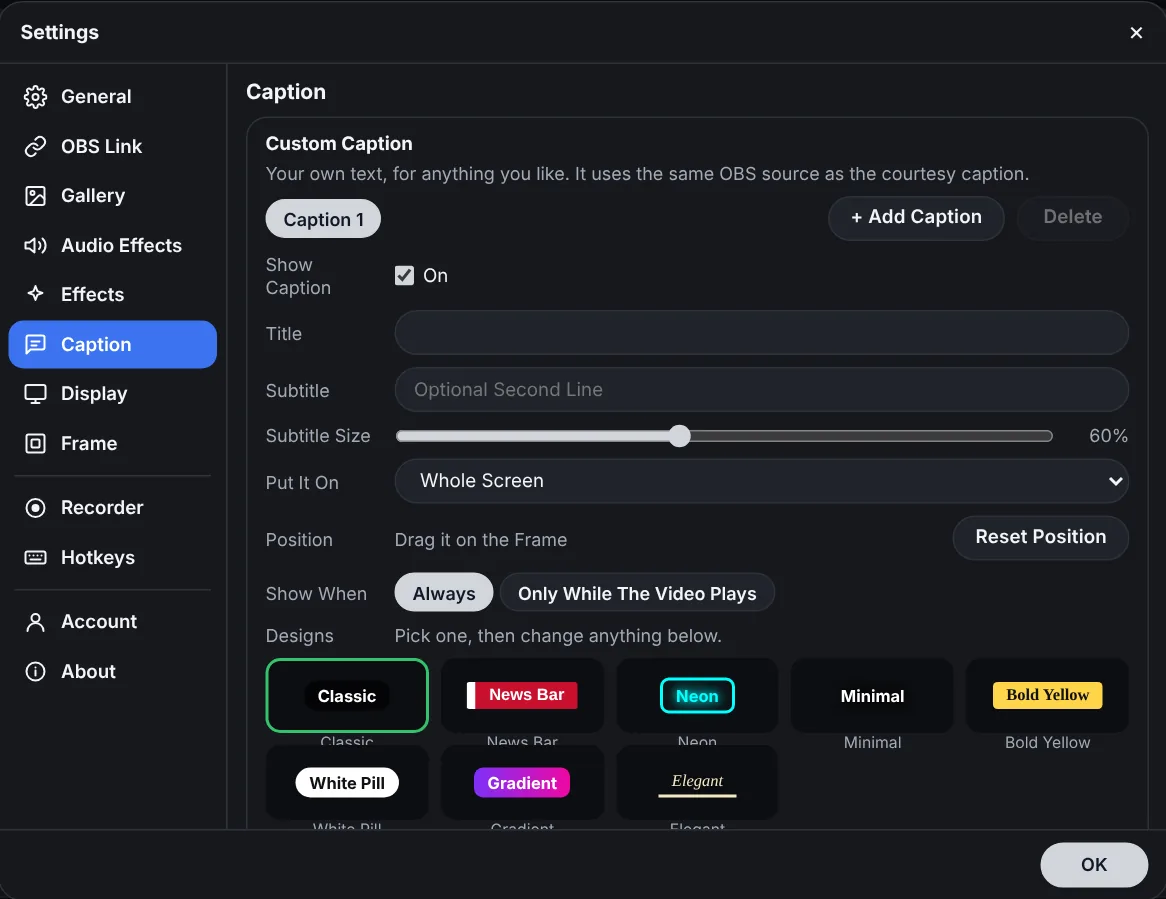
Add a caption on any video, such as a courtesy line, and choose when it shows.
Gallery and Snip
Keep your pictures in a gallery and send them to another Frame. Or snip part of your screen straight into it. The browser asks which screen to share.
Recorder
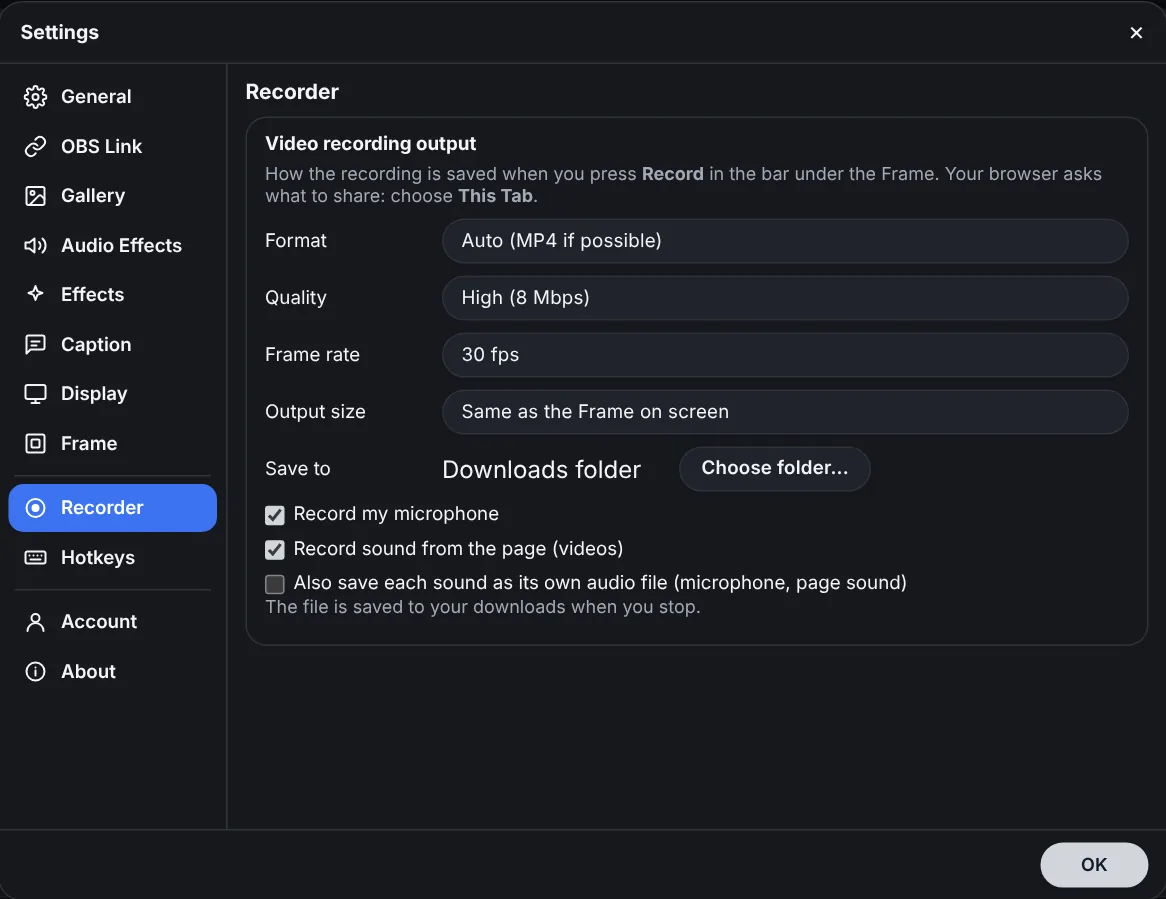
Record the Frame with your camera. The browser asks what to share, so you choose.
See it in action
These are real screens from Studio Frame, in dark mode.
From idea to live
Five steps, and the first four take a few minutes.
Create your account
Sign up with your email. Your 7-day trial starts right away.
Paste your videos
Add a link to each box. The tabs take the names of the videos.
Arrange the Frame
Drag the boxes, pick a layout and save it as a slot.
Copy your OBS link
Add it to OBS as a Browser Source.
Go live
Use the Go Live guide to send it to YouTube, Facebook and TikTok at once.
Works with OBS
Studio Frame makes the picture. OBS sends it out.
Your stream keys stay in your OBS. Studio Frame never asks for them. The Go Live guide in your account shows how to stream to all three at the same time.
Questions
Which platforms can I show?
Facebook, YouTube, X, Instagram and TikTok videos.
Do I need to install anything?
No. Studio Frame runs in your browser. For streaming you use OBS, which is free.
How does it get into OBS?
You copy your OBS link and add it as a Browser Source. The link shows your Frame and updates live.
Can I keep more than one layout?
Yes. Save slots and layouts, rename them and load them again. You can also make a separate Frame for each show.
Can I play sound effects?
Yes. Audio Effects lets you load sounds, set each volume and play them with hotkeys.
Can I stream to YouTube, Facebook and TikTok at the same time?
Yes, through OBS with a multi-output plugin. The Go Live guide in your account explains it step by step.
Is it free?
You get 7 days free with no card. See the pricing on the home page for the plans.
Does it work on my phone?
You edit on a computer. The picture goes to OBS, which also runs on a computer.